Changelog

What's new in Zenamu

Every month we sum up what we added to Zenamu: new features and improvements for studios, instructors and their clients.

November 2026

Notification when a course spot opens up

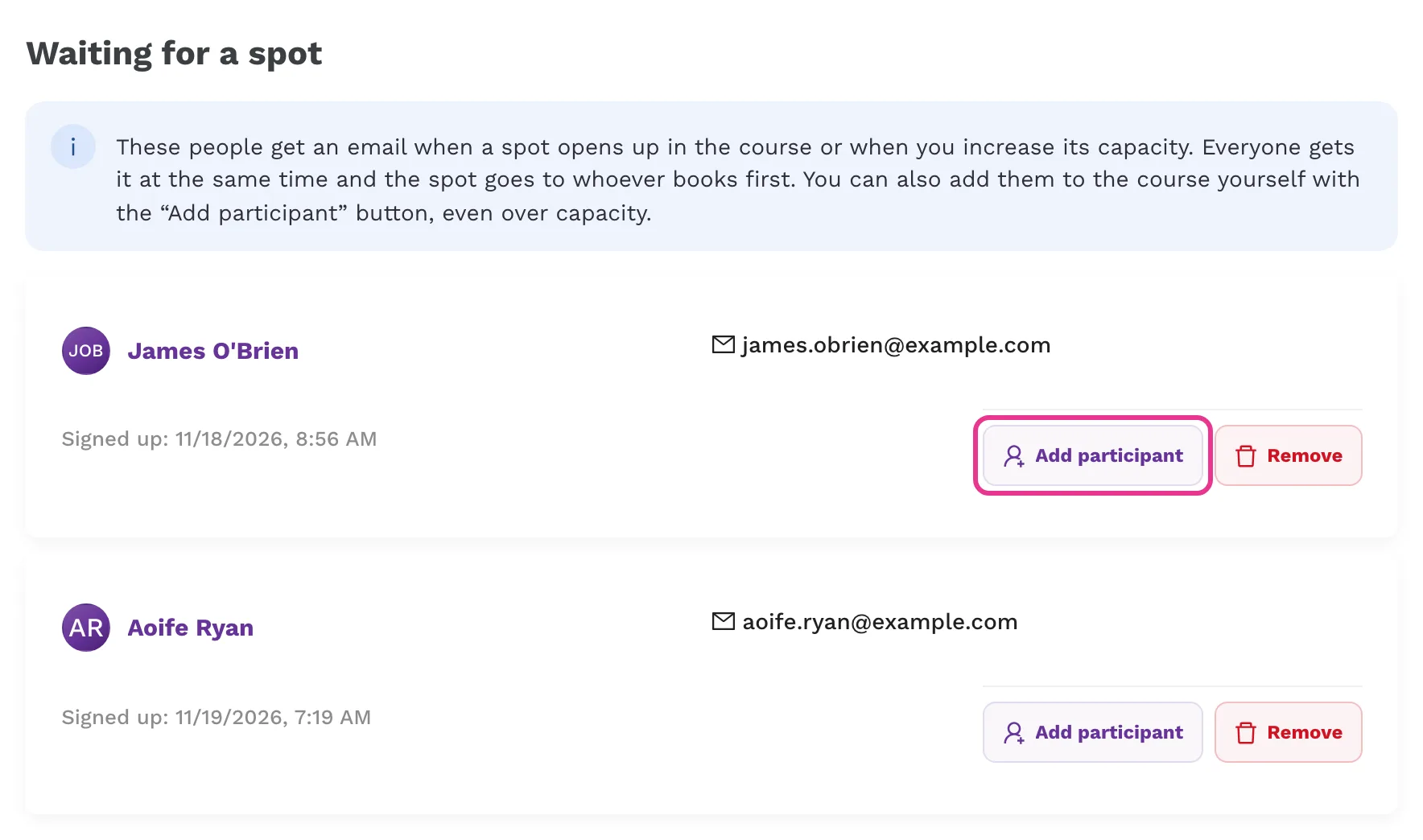
When a course is full, clients can ask for an email when a spot opens up. The email goes to everyone waiting at the same time, as soon as a spot opens up or you increase the capacity, and the spot goes to whoever books first. You'll see who is waiting in the course details under Waiting for a spot. With the Add participant button, you can also add them to the course yourself, even over capacity.
Notification when a course spot opens up

New look for the public schedule

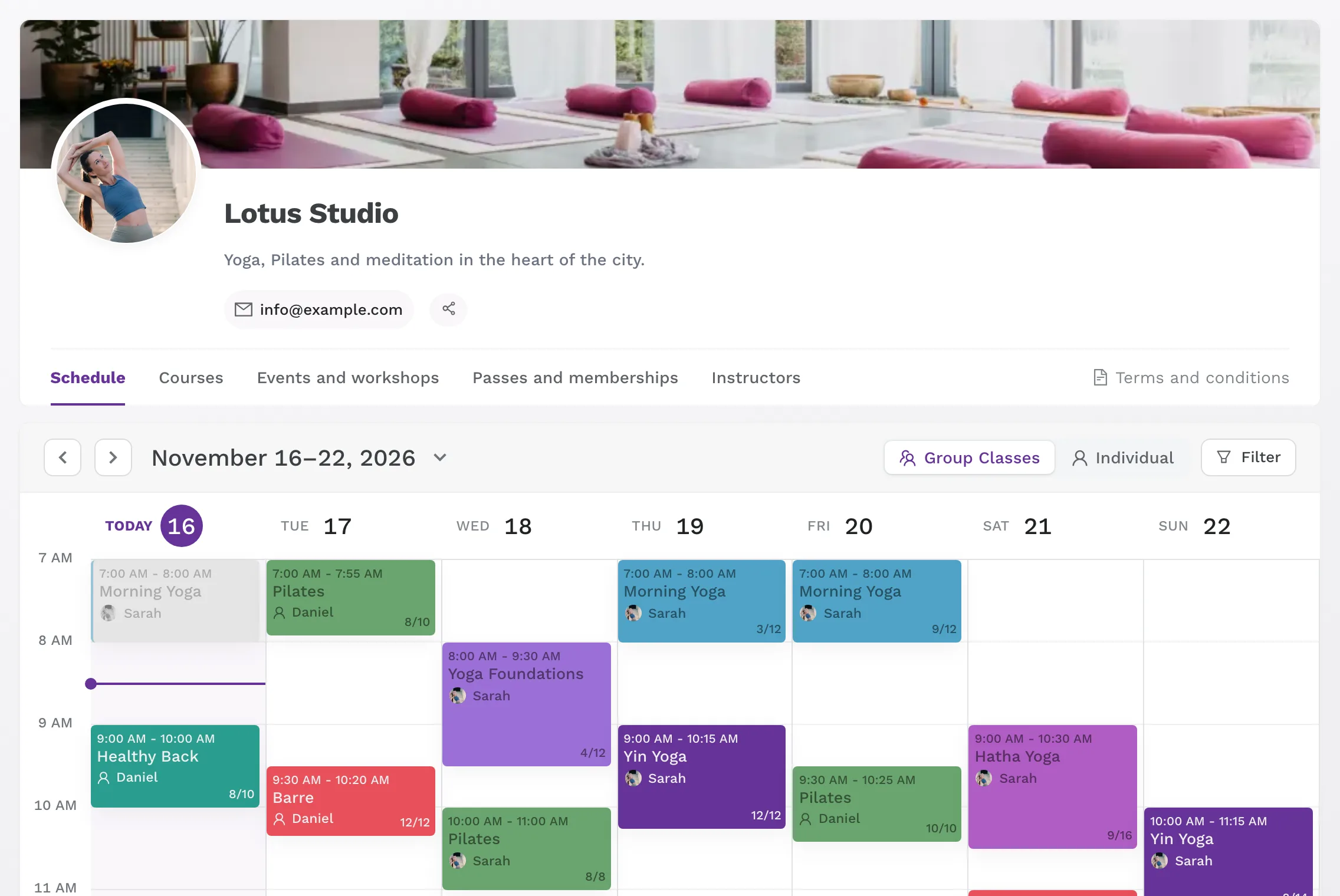
The public schedule has a clearer header and a weekly grid that highlights today and the current time. You can now show the background image as a Cover strip above the studio header instead of as the background of the whole page, and choose the photo crop. With the Share button, clients can show a QR code or copy the link to the schedule. A custom color scheme for the schedule is now available from the Expert plan up.

New look for the public schedule

Clearer client account

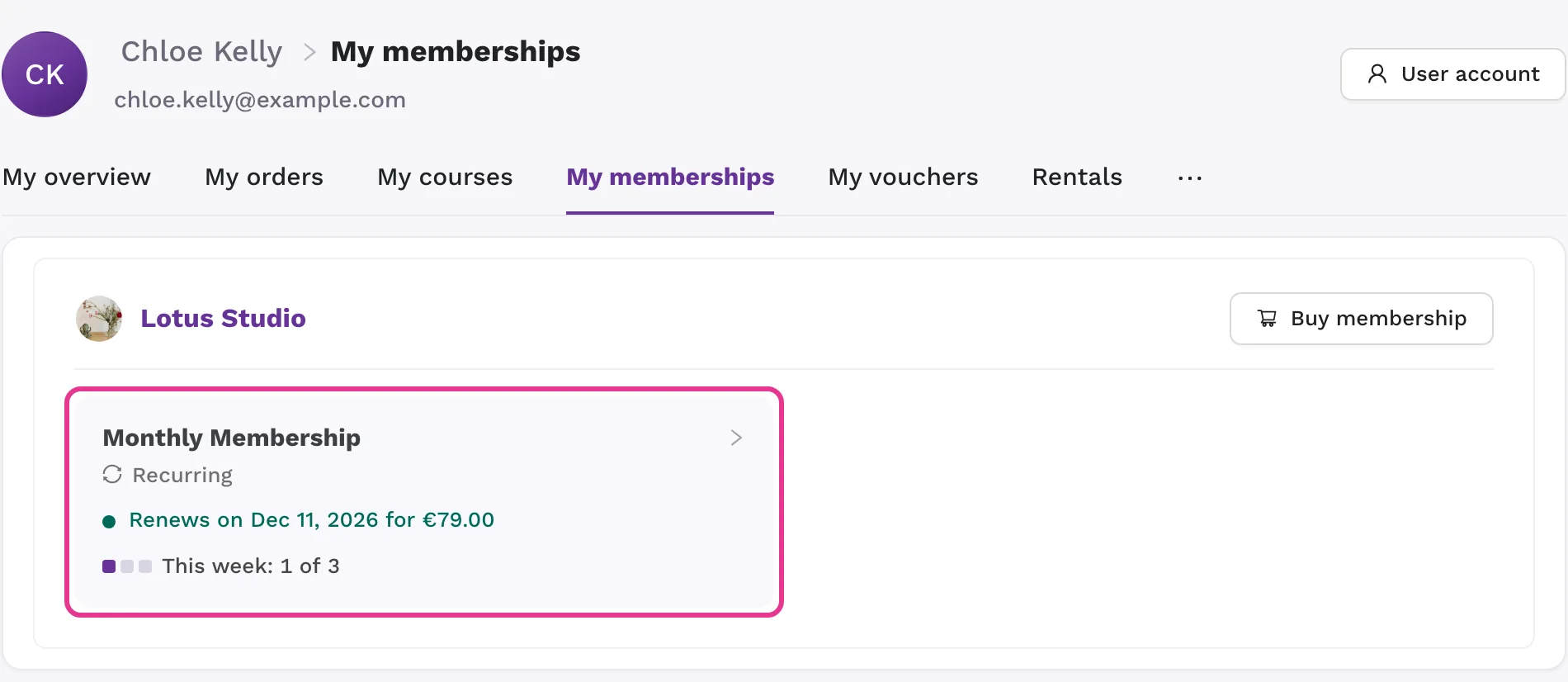
The My memberships, My passes, My vouchers and My courses pages in the client's account have a new look. For a membership, the client sees when it renews and for how much, the date it's valid until, and how much of the booking limit they've already used. If a payment fails, they can update their card right there. Passes now have an Entry history with all purchases, used entries and returned entries. You'll find the same history in the client detail.

Clearer client account

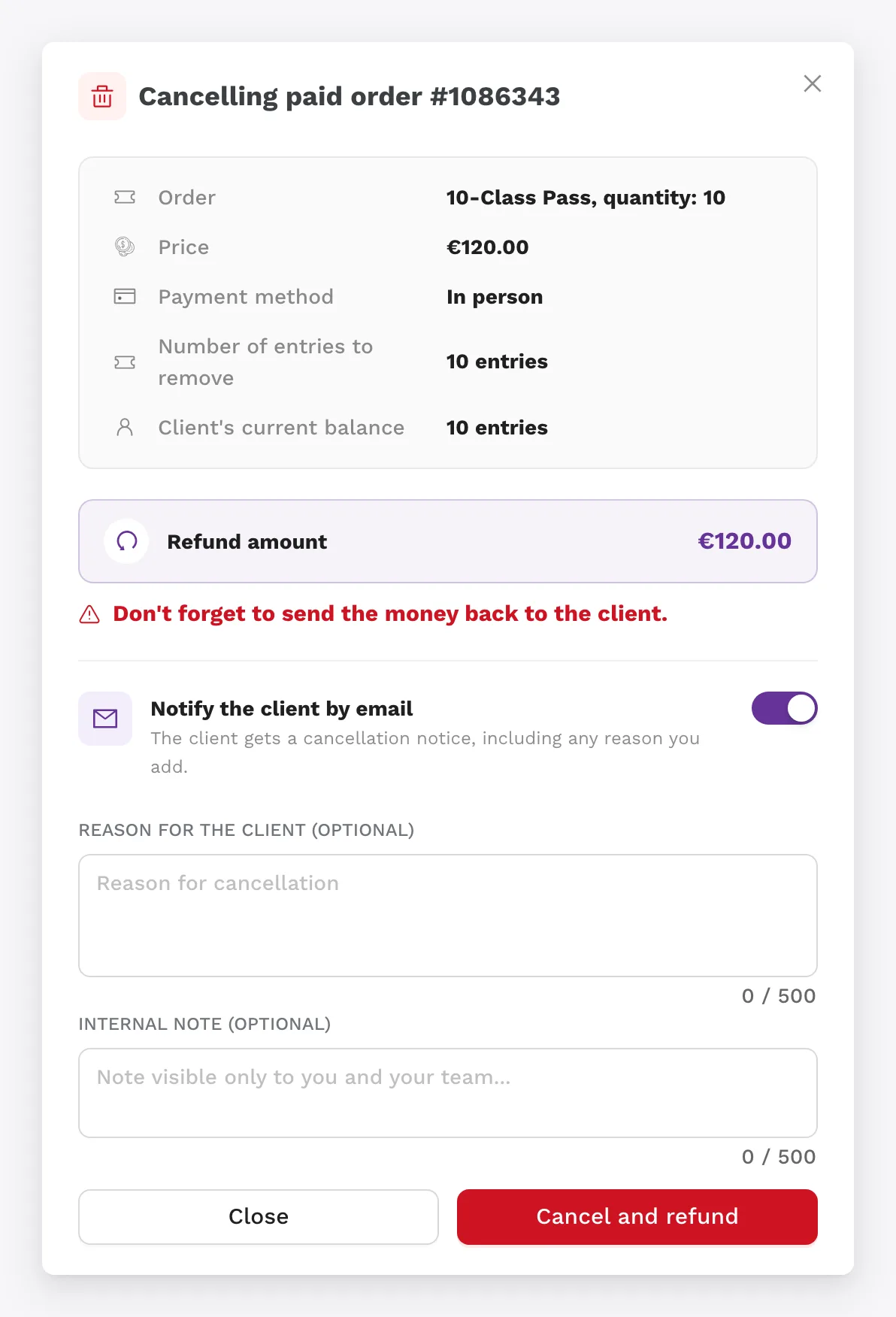
Cancel a booking without an email

When you cancel a client's booking, you can untick Notify the client by email. The client then doesn't get any email. This helps, for example, when you're only re-creating the booking with a different payment method.

Extra questions about the child and the personal ID number on receipts

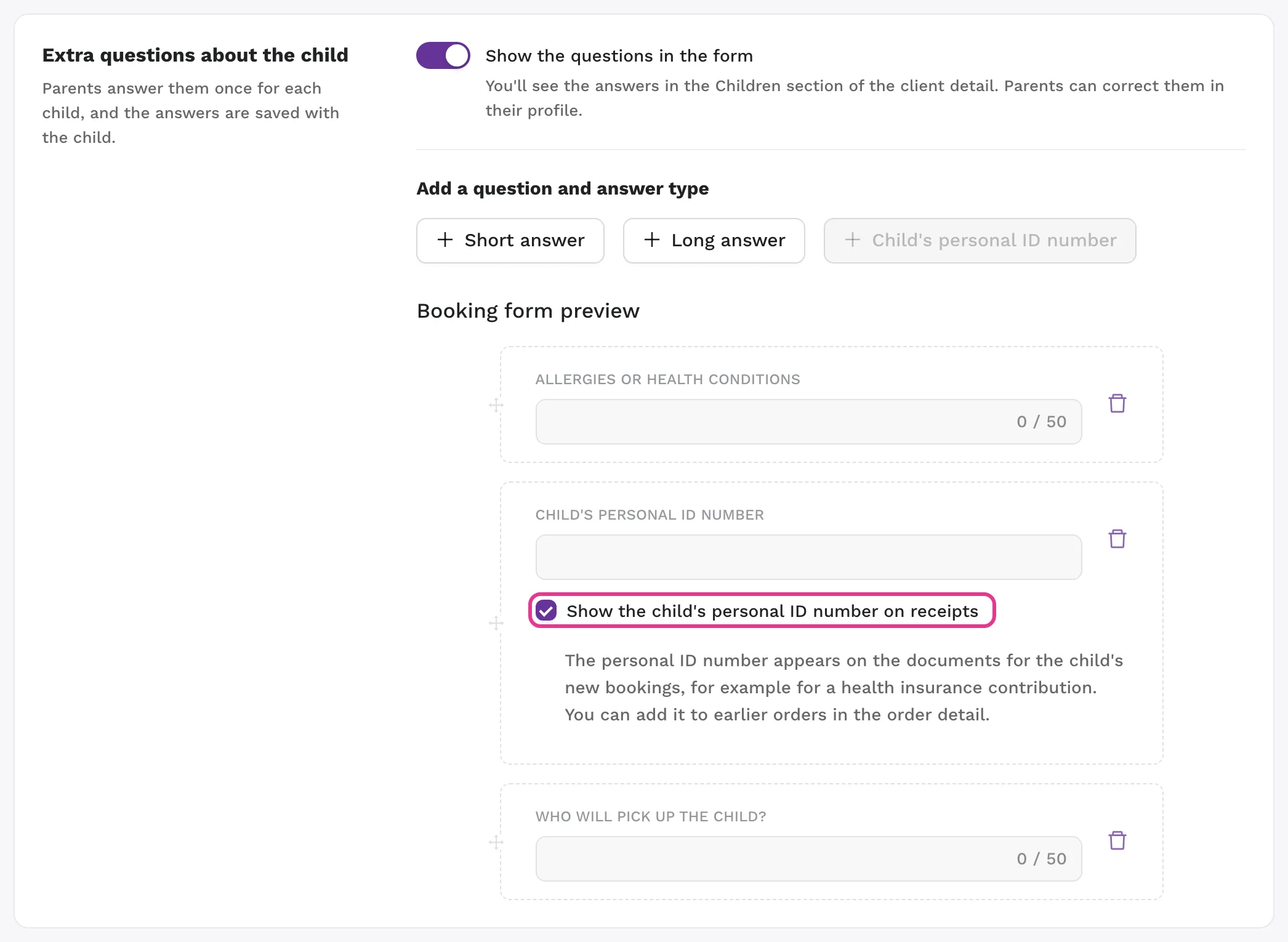
In Settings > Bookings and rules > Extra questions, you can add questions about the child, for example about allergies or the child's personal ID number. Parents answer only once for each child, and you'll find the answers in the client detail and in the attendee export. You can show the personal ID number on receipts, for example for a contribution from the parents' health insurance. You correct the child's details on a receipt in the order detail. Read more in Children’s Classes and Child Bookings.

Extra questions about the child and the personal ID number on receipts

Class, course or event by link only

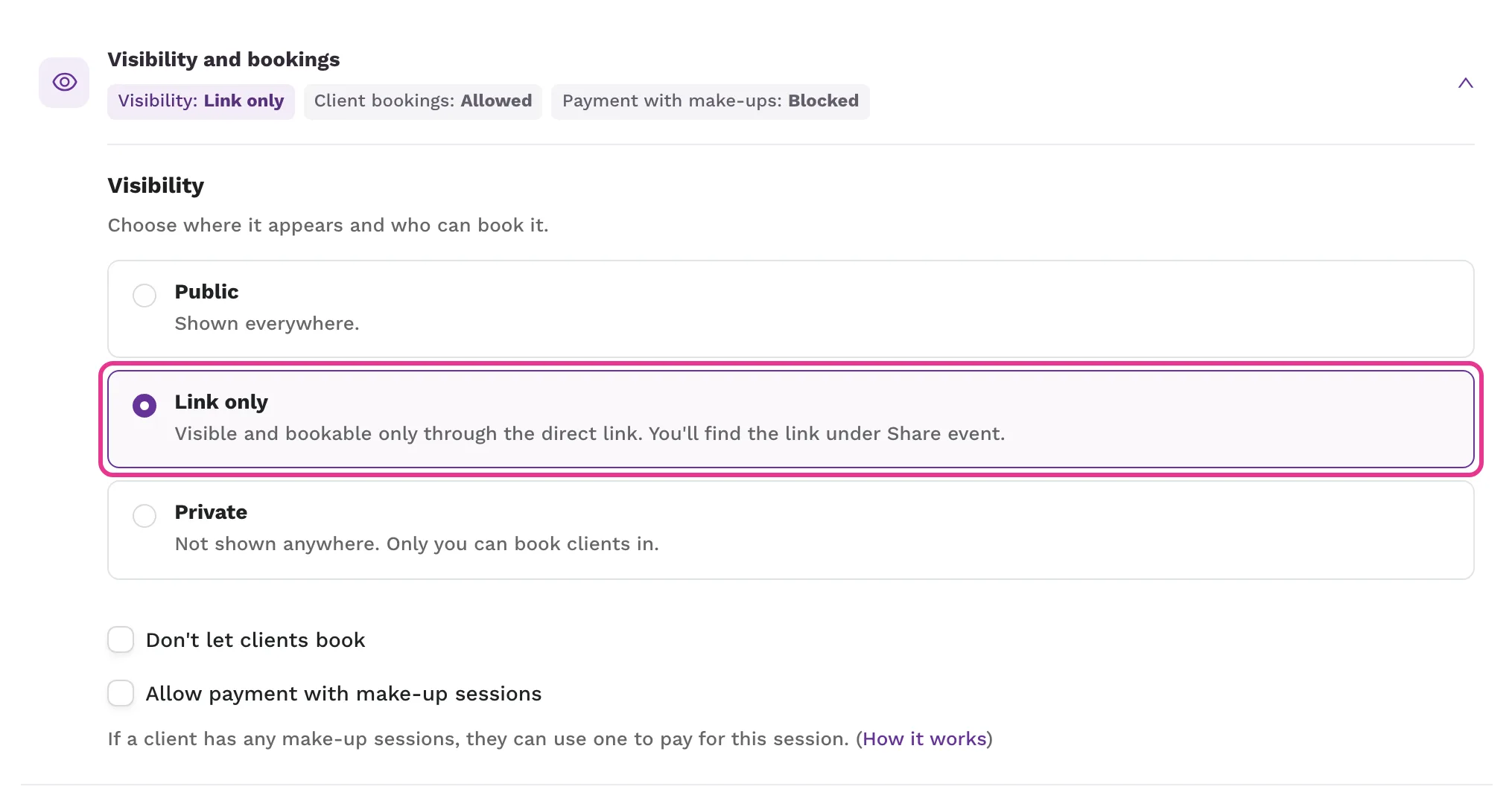
For a class, template, course or event, choose one of three options in the Visibility and bookings section: Public, Link only or Private. With Link only, it doesn't appear on the public schedule or in your offer, but anyone who has the direct link can open it and book. You'll find the link under Share event. With Private, it doesn't appear anywhere, and only you can book clients in. For events, you choose between Public and Link only, so an event hidden from the schedule stays available through its direct link. Read more in Visibility of a class, course, or event: Public, Link only, or Private.

Class, course or event by link only

Move an attendee to another event

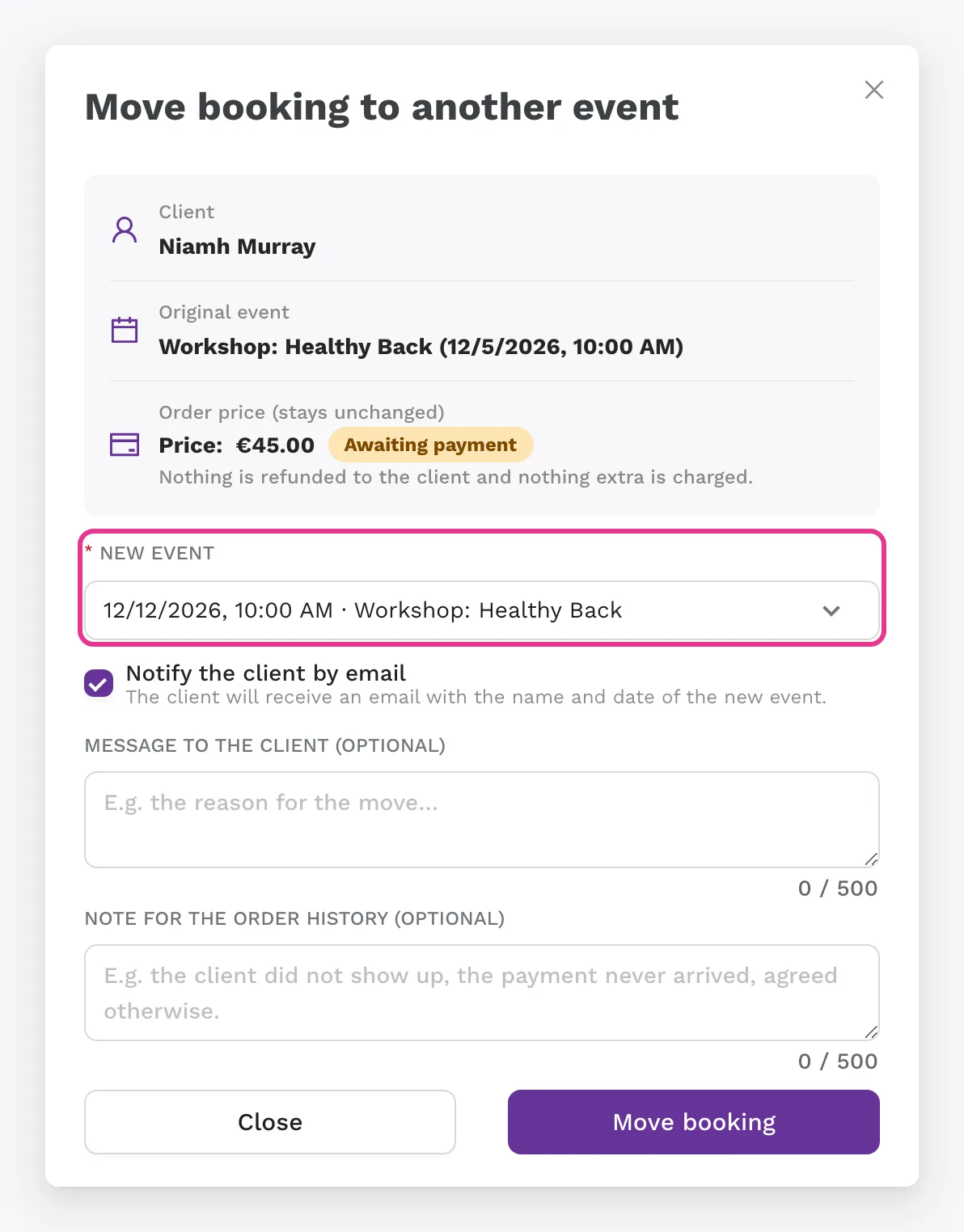
In the event details, choose Move to another event next to the attendee. The whole order moves to the new event, and the price, the payment and the issued receipt or invoice stay the same. Zenamu warns you if the new event is full, if the client already has a booking there, or if they paid with a pass, credits or a membership. You can send the client an email with the name and date of the new event. Read more in How to move a client to another class without cancelling or refunding.

Move an attendee to another event

Cancelling a paid pass or credits, and withdrawing from a purchase

To cancel a paid order for a pass or credits, choose Cancel the order and refund the payment. The entries or credits the order added are removed from the client's balance. If the client has already used some of them, only what's left in the balance is removed. The full amount is always refunded: we refund card and PayPal payments automatically, and you refund bank transfer and on-site payments to the client yourself. The client gets an order cancellation email with your note. You can now also let clients withdraw from a pass or credits they bought online themselves, using the Withdraw from purchase button in the order details, as long as they haven't used any of the purchase yet. To turn this on, go to Settings > Passes and memberships and, on the Entry system or Credit system tab, tick Let clients withdraw from a pass or credit purchase. The withdrawal period depends on the country in the studio's billing details (14 days in the EU), and the setting only appears in countries where this right applies. It covers purchases made after you turn it on. Read more in Client withdrawal from a pass or credit purchase.

Cancelling a paid pass or credits, and withdrawing from a purchase

Payment methods for waitlisted clients

In Settings > Bookings and rules > Booking creation, choose the Payment methods for the waitlist in the waitlist settings. Clients can now join the waitlist with bank transfer or on-site payment too. They pay only once a spot opens up, and they get the bank transfer details by email. By default, all payment methods are allowed. If you don't want a spot to stay unpaid after a waitlisted client is booked in, untick bank transfer and on-site payment.

Marketing emails in the client's account

In their account, under Marketing emails, clients turn their consent to marketing emails on or off themselves, separately for each studio.

Appointments at any time

When you add an appointment booking in the admin, you can type the time in the Or enter a time manually field, even outside the times offered by the specialist's schedule. Zenamu doesn't allow a booking that would overlap another of the specialist's bookings, and it shows which booking it overlaps.

Record a payment without an email

When you click Record payment on a pass or credit order, you can untick Email a confirmation to the client. This helps when you hand over a pass before the payment arrives. The entries or credits are added to the client's balance, but the client doesn't get an email. The order history records that no email was sent.

Child in the attendee export

The attendee export for a class, course or event with child bookings includes a Child column. Anyone who can see client contact details also gets the Child's date of birth in the export.

Kleinunternehmer on invoices and receipts

Studios in Germany that don't charge VAT tick I use the small business scheme (Kleinunternehmer, § 19 UStG) in their billing details (Settings > Payments). Invoices and receipts for clients then include the required note "Steuerbefreiung für Kleinunternehmer gemäß § 19 Abs. 1 UStG." This applies to documents issued after you save.

October 2026

Move a booking to another class or course

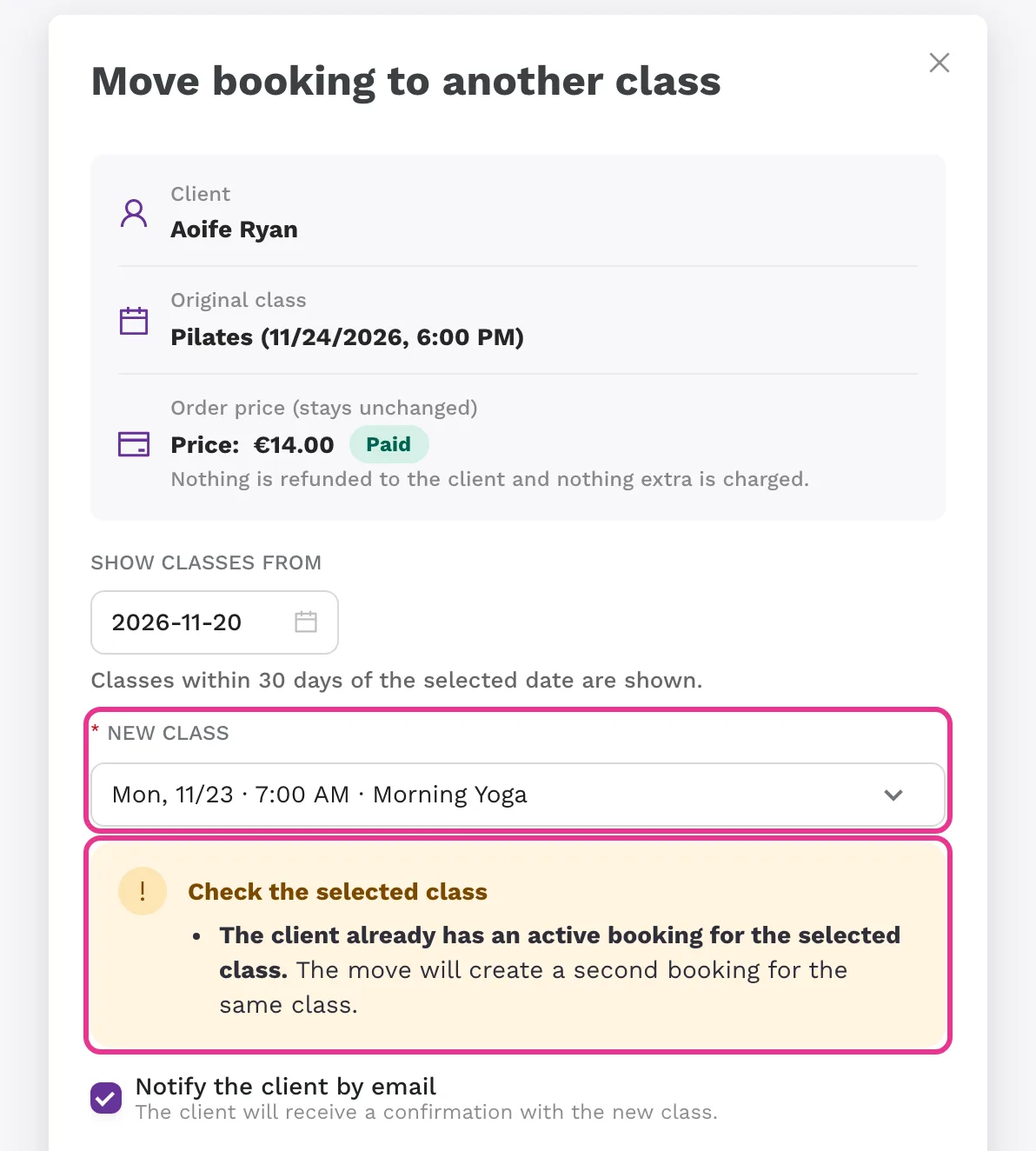
In the class details, choose Move to another class to move an attendee. For a course, Move to another course moves the client's whole course booking. The booking isn't cancelled, nothing is refunded, and the order price stays the same. Zenamu warns you if the class is full, if the client already has a booking there, or if they would end up on the waitlist. You can send the client an email about the move with your own message. Read more in How to move a client to another class without cancelling or refunding and How to move a client to another course without cancelling or refunding.

Move a booking to another class or course

Required phone number

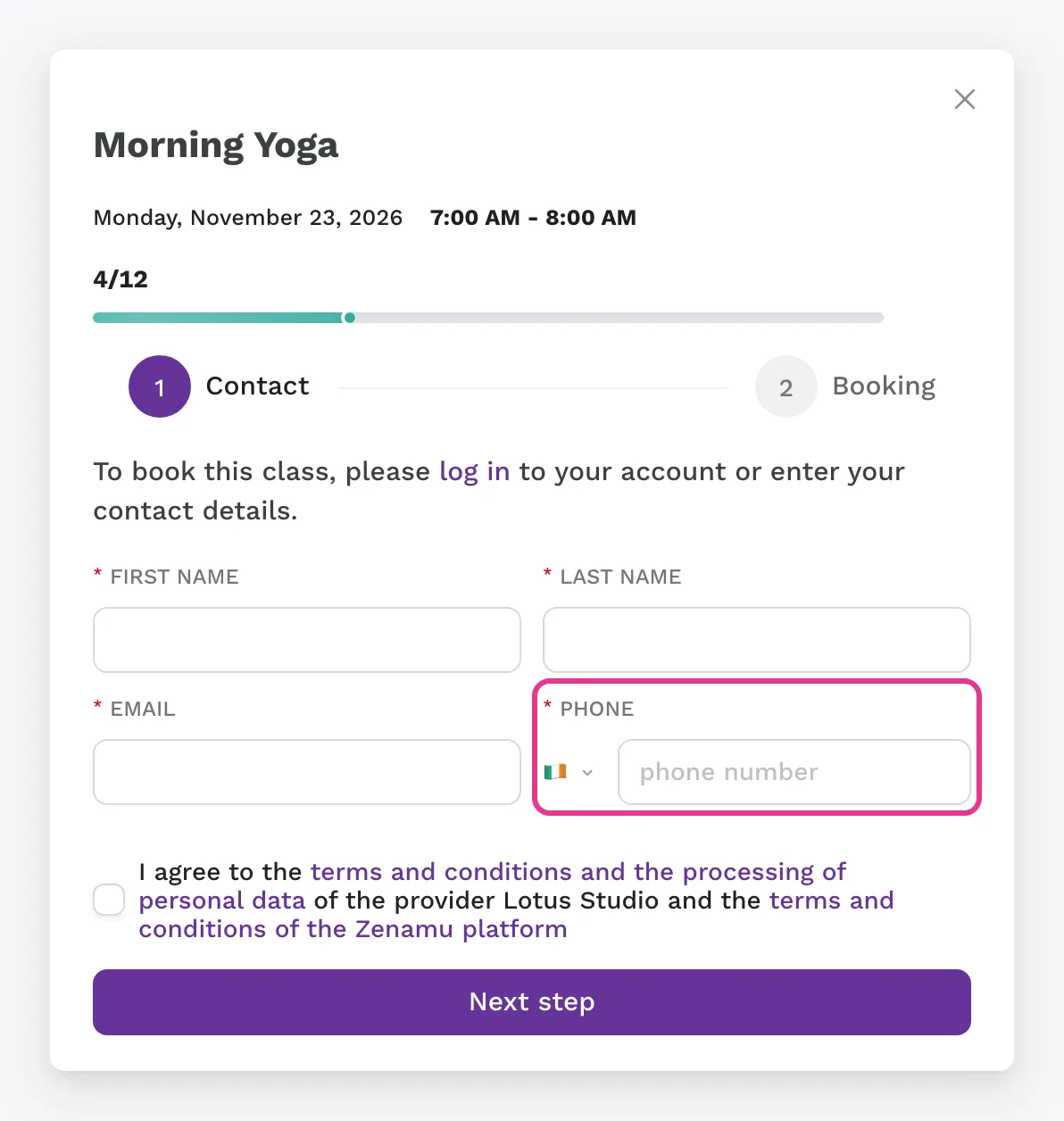
In Settings > Bookings and rules > Extra questions, add Phone number to the extra questions for new clients and make it required. Zenamu validates the number and saves it to the client's profile. Read more in Custom Fields in the Booking Form.

Required phone number

Discount as a separate line on receipts and invoices

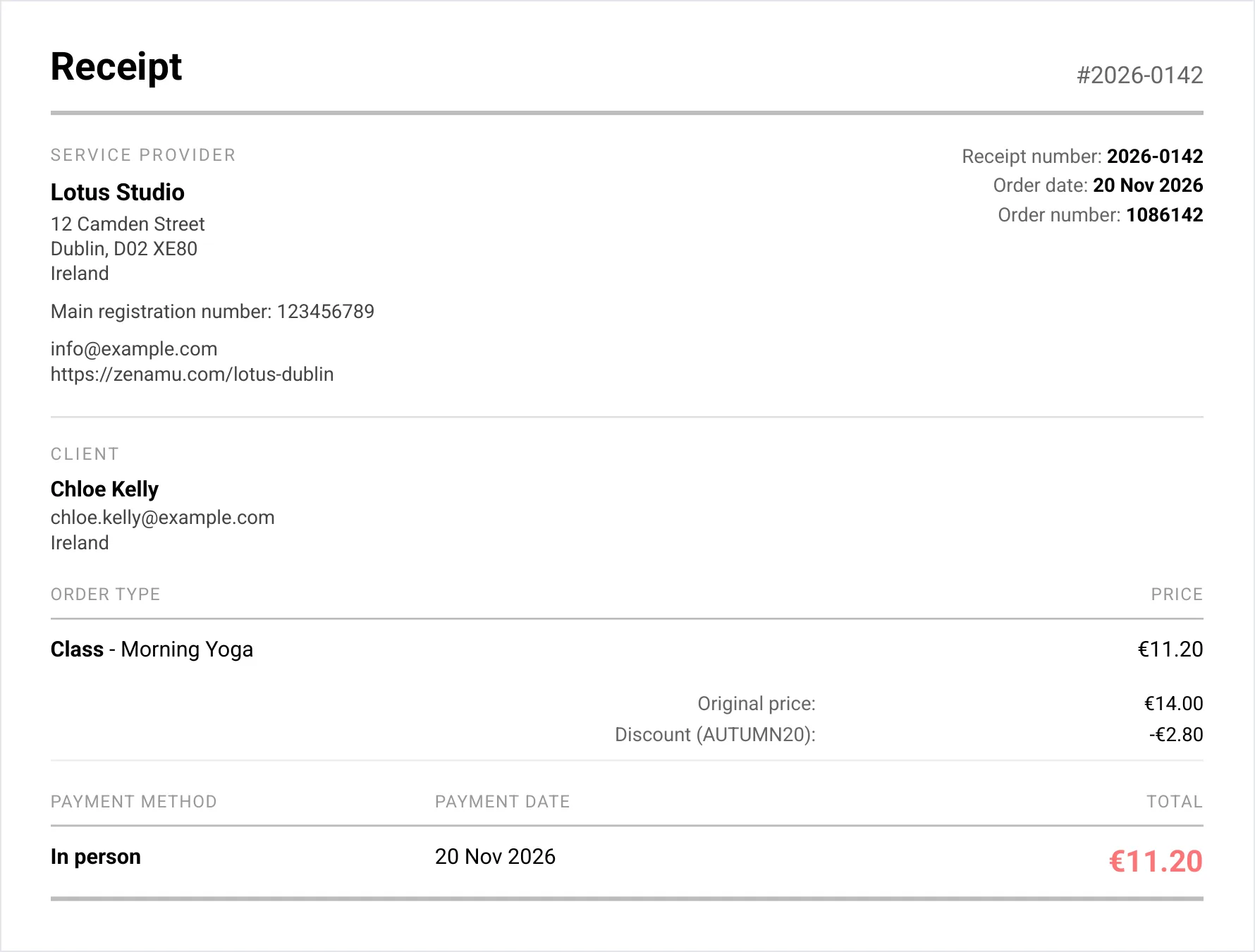
Receipts and invoices include Original price and Discount lines. For a discount code, the line also shows the code. If you charge tax, the document also shows the amounts excluding tax and the total discount including tax. A gift voucher has its own line and isn't labeled as a discount. You can change the discount label in the order details.

Discount as a separate line on receipts and invoices

Pay by QR code at the venue

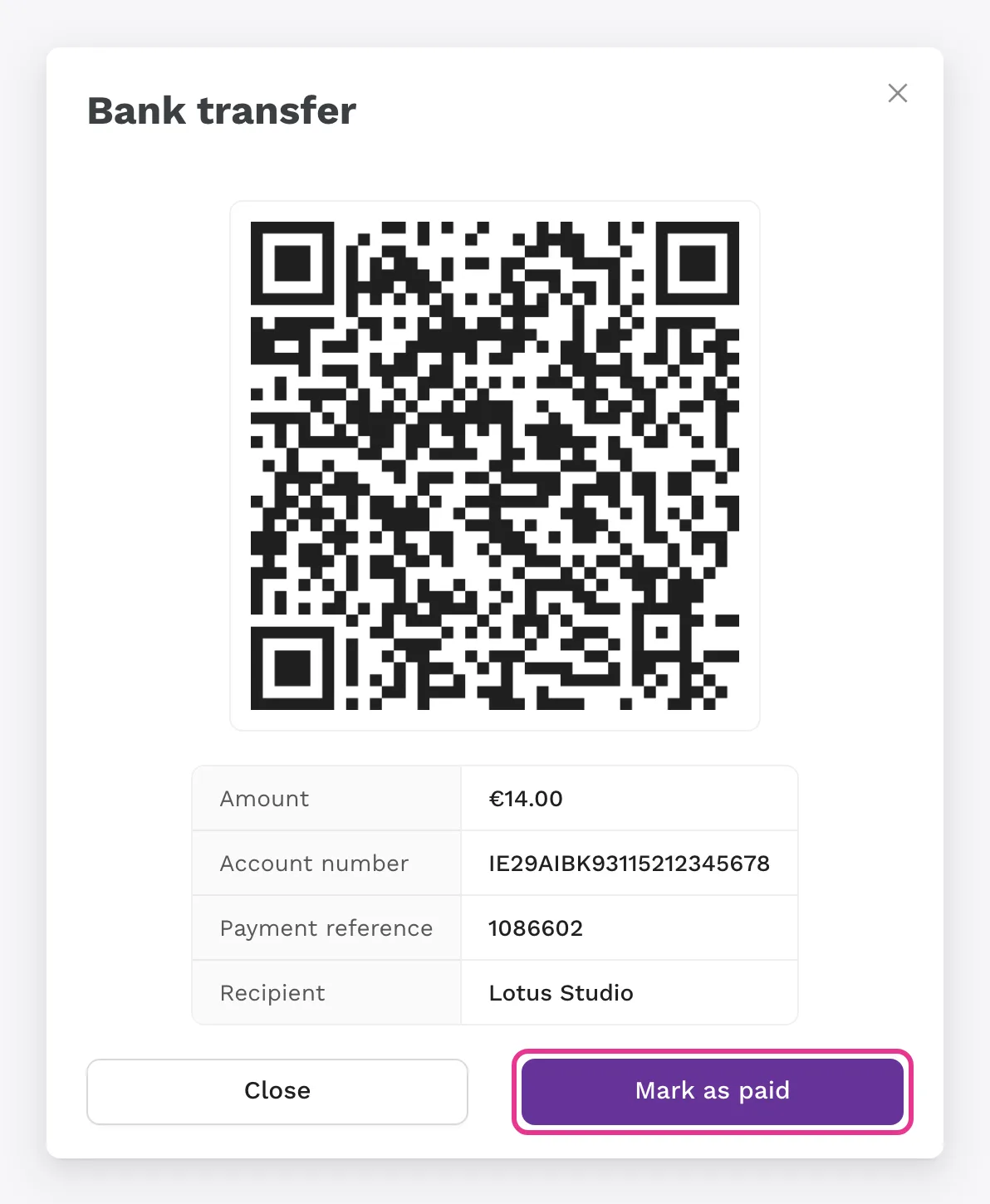
A client who pays in person can pay by bank transfer by scanning a QR code in their banking app. In the class details, click Show payment QR code next to the attendee. The order switches to bank transfer and a QR code with your account number and the amount appears. Once the money arrives, mark the order as paid. If your bank account is connected (Ultimate plan), the payment is matched automatically. To turn this on, go to Settings > Payments and, under the In person payment method, tick Bank transfer (QR). The QR code works for payments in euros. For other currencies, Zenamu shows the payment details instead of a QR code, and you pass them on to the client. Read more in Bank transfer at the venue: QR code and payment details.

Pay by QR code at the venue

Add to calendar

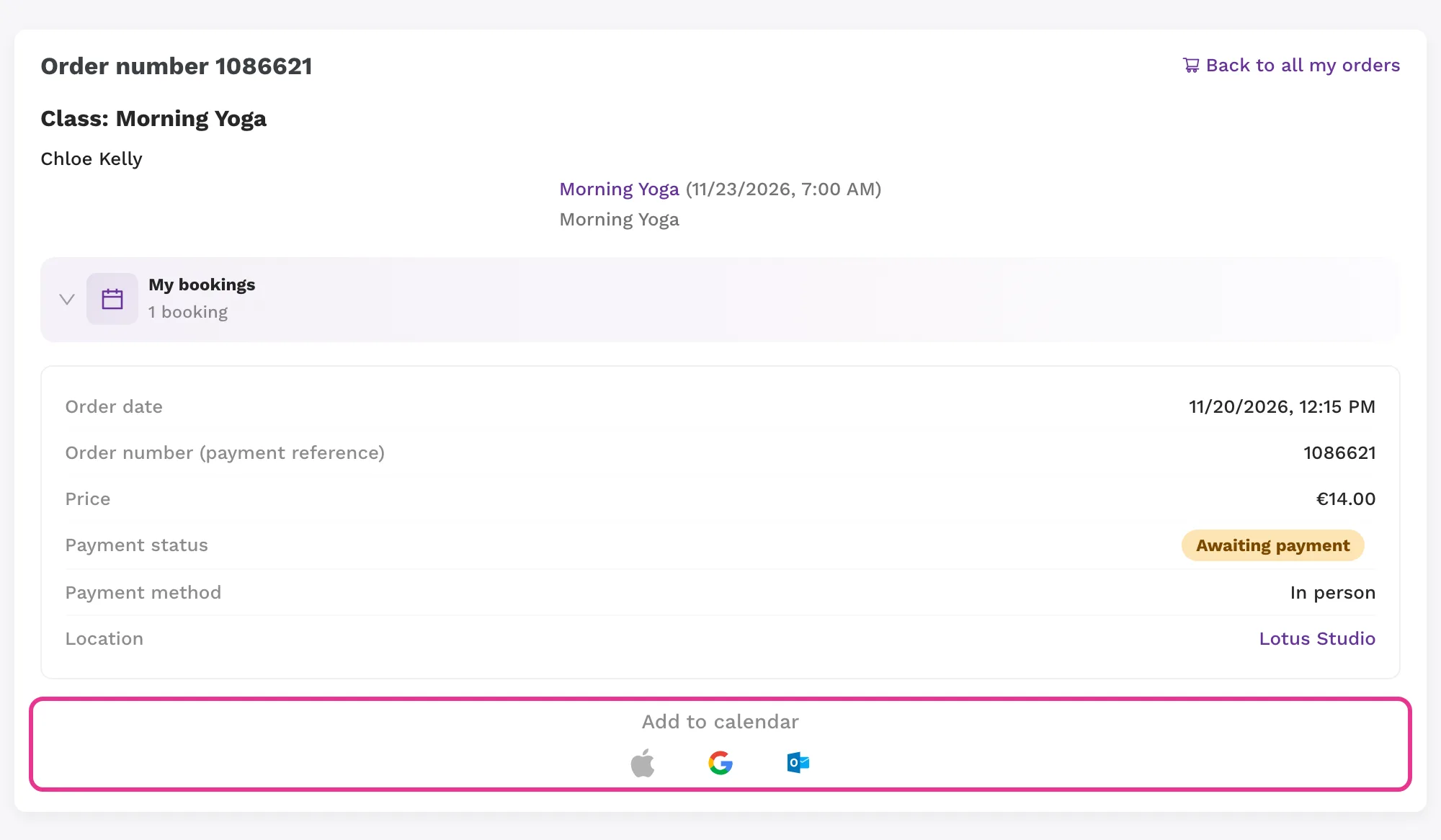
Clients can add a class, event or appointment to their calendar (Google, Outlook) right after booking, from the order details in their profile, and from emails. The calendar link now also appears in the booking confirmation for events and appointments, in the payment confirmation, and in the email about a class change.

Add to calendar

New client details at purchase too

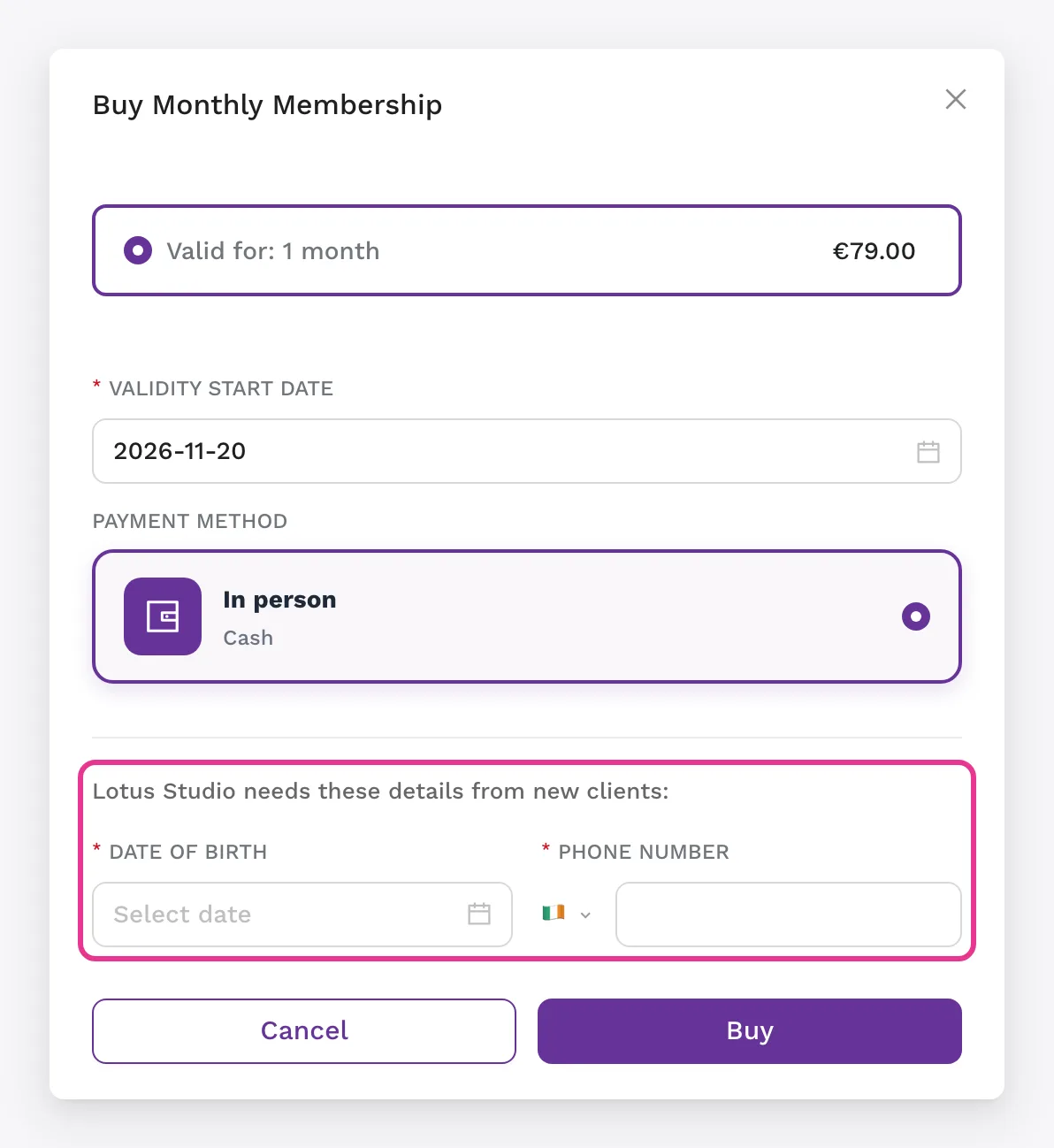
Questions for new clients, such as date of birth, now also appear when a client buys a pass, credits, a membership, a video or a rental, or redeems a gift voucher, not only at their first booking. They don't appear when someone buys a gift voucher, since the buyer usually isn't the future client. The client saves their date of birth to their profile, and it's pre-filled at other studios. Read more in Custom Fields in the Booking Form.

New client details at purchase too

An attendee's order in one click

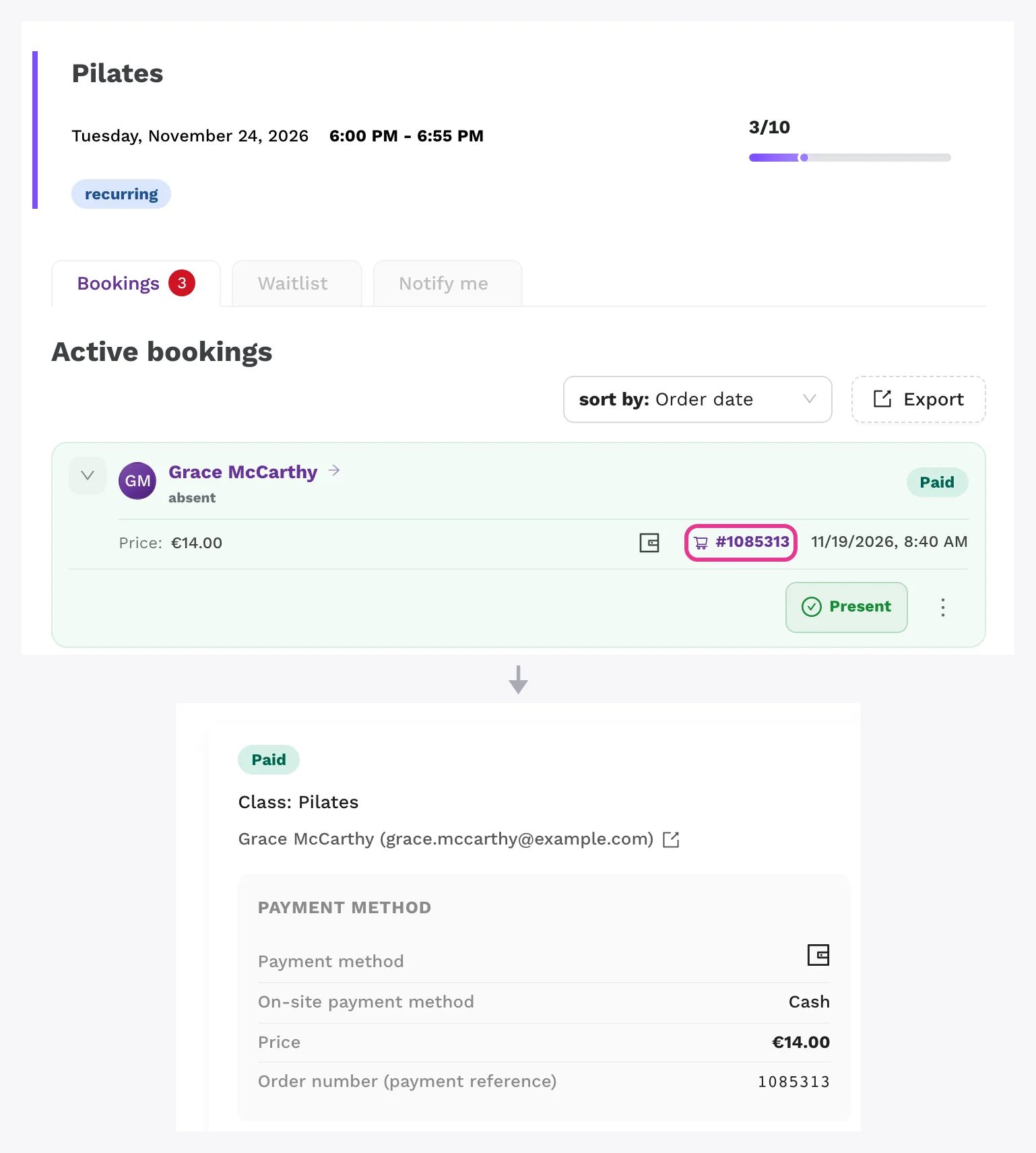
In the class, course or event details, open an attendee's order. It appears in a side panel, so you don't have to leave the class details.

An attendee's order in one click

September 2026

Entry instructions

Add Entry instructions (door code, floor, parking) to a class, template, course, course session or event. Only clients with a booking get them, in the booking confirmation and in the reminder. You can choose to send them only after payment. When you change the instructions, all clients with a booking get an email with the updated version.

Payment reminder

For an unpaid bank transfer order, click Send payment reminder. The client gets an email with the payment details and your optional message, and "Payment reminder sent" appears in the order history. You can send a reminder at most once every 24 hours.

Custom price when adding an attendee

When you add an attendee to a class, course or event manually, you can enter a Custom price (free works too) and an internal note. The custom price is recorded in the order history.

Credit history

Clients have a My credits item in their profile with their balance at each studio and a history (top-ups, expirations, refunds, removals, holds on the waitlist). When you remove credits manually, you fill in a Reason for the client and an internal note. Read more in Credit Pack System.

August 2026

Statistics overview

Statistics have a new start page, Overview. It shows revenue, recurring membership MRR, outstanding receivables, unredeemed liabilities (credits, entries, vouchers, memberships), occupancy, cancellations, empty sessions, occupancy by day and hour, and occupancy by location. The Needs attention section lists upcoming sessions with few bookings, clients at risk and overdue receivables. You can compare the period with the previous month or year.

Multiple instructors for a class, course or event

Assign an instructor team to a class, template, course or event. Clients see the instructors in the schedule, and instructor statistics have a new Co-taught open classes table. Available on the Expert and Ultimate plans. Read more in Multiple instructors for a class, course or event.

Passes paid on site or by bank transfer

Clients can order a pass online and pay on site, and you then confirm the payment. Choose the Allowed payment methods in Settings > Passes and memberships. When you add a pass from the admin, you can select bank transfer and send the client payment instructions. Read more in Paying on site for entry passes and credits.

Make-up validity for courses

Make-up validity counts from the date of the session the client cancelled their attendance for, not from the day they cancelled. There are two new options: the How long make-ups are valid card in your studio settings and Make-up validity for this course on each course. Set a fixed number of days, or validity until the course ends plus a few extra days. Read more in Courses and events: make-up sessions and client cancellation settings.

New client email

Administrators get a New client email when someone registers, books or buys at your studio for the first time. Turn it on in Settings > Notifications > Email notifications to instructors.

Children-only classes

For a children's class, choose Children only — a child must be selected or Adults can book too. You can also set an event or a template as a children's one. Booking emails include the child's name. Read more in Children’s Classes and Child Bookings.

Generate your own API keys

In Settings > Schedule page > API access token, you can generate a public and a secret API key. The documentation is at docs.zenamu.com. The public key reads your schedule, events, instructors and locations. The secret key (Ultimate plan) reads clients and adds credits and passes to their accounts. Read more in API.

July 2026

Automatic cancellation for low occupancy

Set a minimum occupancy and how far in advance Zenamu should check it. If not enough clients book, Zenamu cancels the session, notifies the clients and refunds their payments. You can adjust or turn off the default rule for a specific session. Available on the Expert and Ultimate plans. Read more in Automatic cancellation for low occupancy.

Pass categories

Sort your passes into categories and decide which classes, courses, events or services they're valid for, for example only reformer classes or only one instructor's classes. A category can have several options, such as 5, 10 and 20 entries. Read more in Pass categories.

Marketing automations

Zenamu sends birthday wishes for you, and an email to clients who haven't come in a long time (win-back). You can edit the subject and text and add a gift voucher, which goes straight to the client's account. Statistics show deliveries and redemptions. You'll find the automations in the Marketing and promo section, available on the Ultimate plan. Read more in Marketing automations: overview.

Space rental

Offer free hours in a room to other organizers for rent. Set the hourly price, availability, cancellation terms and whether you approve requests. Zenamu checks for clashes with your schedule and issues the documents. Available on the Ultimate plan. Read more in How to offer your space for rent.

June 2026

Recurring memberships

A membership that renews by itself: Stripe charges the client's card automatically every week, month or year. Turn it on in Settings > Passes and memberships with Use recurring memberships. It requires the Ultimate plan and a connected Stripe account. Read more in What recurring memberships are and when to offer them.

Video library

Offer videos from Vimeo or YouTube to your clients in playlists, through a membership, as a one-off purchase or for free. The admin menu has a new Videos section, and clients have My videos in their profile. Available on the Ultimate plan. Read more in What is video on demand and how to turn it on.

White-label branding

Remove Zenamu branding from your studio's public pages and the booking process. You'll find it in Settings > Schedule page, available on the Ultimate plan. Read more in Branding: Color Theme and White-Label.

On-site payment methods

On-site payment distinguishes cash, card and cheque (cheque only in countries where it's used) instead of a single general option. Clients see which methods you accept when they book, and the method used appears on receipts and invoices. Read more in On-site/In Person Payments Settings.

Clients can cancel event bookings

Clients can cancel their event booking themselves. If they cancel before the refund cut-off you set, they get a full refund; after it, only bookings paid with entries, credits or a membership can still be cancelled online. Read more in Courses and events: make-up sessions and client cancellation settings.

Cancellation deadline for a whole course

Set how long before a course starts clients can cancel their booking for the whole course. Clients see the deadline on the public page.

Recurrence up to a year ahead

You can schedule recurring classes and appointments up to 1 year ahead (previously 3 months).

May 2026

Document export for accounting

Download your issued documents as PDF or ZIP, or for your accountant in ISDOC format (Pohoda, Money S3, ABRA, Helios) or Pohoda XML. You can save accounting codes for Pohoda. The export is in the Issued documents section. Read more in Pohoda/ISDOC.

Paying with a make-up session on the waitlist

Clients can join the waitlist for a full class and pay with a make-up session, which stays on hold until a spot opens up. Read more in Make-up sessions: earning, using, and validity.

Account holder for bank transfer payments

In the bank transfer settings, fill in Account holder if it differs from the billing entity. Clients see it in the payment details. Read more in Setting Up Bank Transfer Payments.

Make-up validity when booking

When booking, clients see which make-up session will be used and until when it's valid, or that a make-up can't be used for this class.

April 2026

Local payment methods through Stripe

Clients can pay with methods common in their country, for example iDEAL, Bancontact, EPS, Przelewy24, Twint, MobilePay, Swish, Satispay or Revolut Pay. Zenamu offers them to clients automatically. Read more in Stripe: Local payment methods.

New course overview for clients

Clients see their courses split into active and past. For each session, they see its status on a timeline and can cancel their attendance right there.

March 2026

1:1 appointments

Alongside group classes, you can offer bookable 1:1 services: personal training, massage or consultations. Set up services, specialists, their availability, prices, approvals and cancellation terms. Read more in Introduction to Appointments.

Collaboration with external instructors and partner studios

External instructors and partner studios add their classes to your schedule, but handle payments and documents in their own account. Available on the Ultimate plan. Read more in Studio collaboration — overview and setup.

Waitlist with card or PayPal payment

Clients can join the waitlist for a full class and pay online. If no spot opens up, the payment is refunded automatically after the class starts. Read more in Waitlist for fully booked classes.

Client billing details and document type

Choose whether you issue a receipt or an invoice. For an invoice, the client fills in their billing details, including company name, company ID and tax ID. Read more in Client billing information — complete guide.

Billingo and Számlázz.hu

Hungarian studios issue documents automatically through Billingo or Számlázz.hu, including reporting to NAV.

Deleting a studio

You can delete your studio directly in the app. Before deletion, Zenamu lists what you need to resolve first. Read more in How to Delete My Account.

Discounted course prices

A course can have a discounted price both for the whole course and for a single session. The order shows which price option the client chose.

February 2026

Custom tax rate

Set one tax rate for classes, courses and events and another for credits, passes and memberships. A single service can have its own rate, and you can also change the rate on a specific order. Read more in Tax settings: what to check after changing your tax rate.

Editing and deleting a client's make-up sessions

In the client details, you can change a make-up session's validity or delete it.

January 2026

PayPal payments

Clients can pay with their PayPal account or with a card through PayPal. Refunds work on cancellation, including cancellation fees. Read more in Setting Up Payments with PayPal.

Clients and instructors can delete their accounts

Clients and instructors can delete their own accounts. The instructor's future classes move to the studio owner, and the studio keeps the data it needs for accounting. Read more in How to Delete My Account.

Try Zenamu for yourself

A booking system that won't glue you to your screen for hours.

Try for free
Simple and easy to use.